
Build the tracker in your HUD.
The plugin zip does not include Widget Blueprints. The sample project includes an example HUD. These steps are for widgets that you own. This page is for Standalone PIE. Events fire on this machine.
Get the component
On the local player, get PlayerState, then get Quest Component.
Quest tracker
Layout:
- Text for the active quest title. Resolve the definition with
GetQuestByIdon the subsystem. - A vertical box. One row per objective in the current phase.
- On Construct, get the Quest Component from PlayerState.
- Call a Refresh function once. The first paint then uses the current state.
- Bind
OnQuestStarted,OnObjectiveProgress,OnPhaseCompleted, andOnQuestCompletedto Refresh. - In Refresh, call
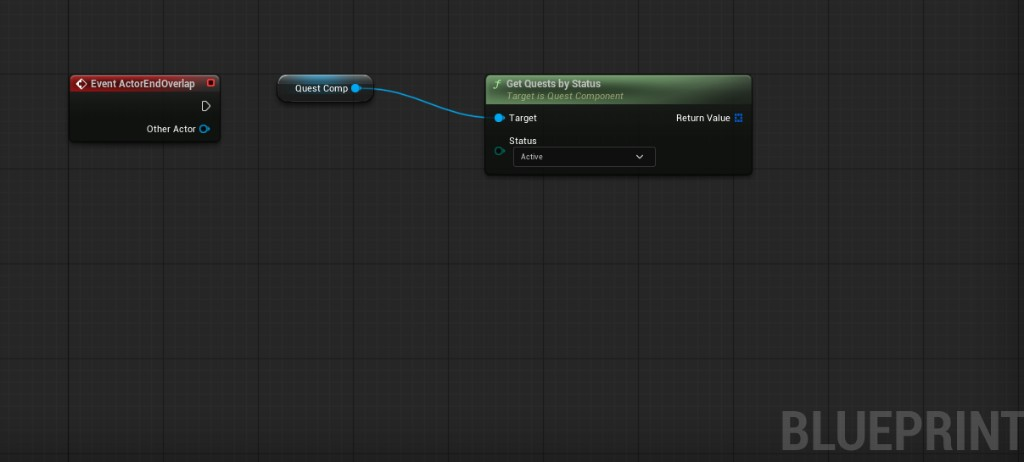
GetQuestsByStatus(Active). Take the first quest, or your pinned quest. - Use
FindQuestStateplus the definition phases to list objectives forCurrentPhaseIndex. - Skip a row when
ShouldDisplayObjectiveis false. - Show
CurrentCount / RequiredCountfromObjectiveProgressand the definition. - Load each objective Icon when you draw the row.
If you want Optional objectives to look different, use the Optional flag on the definition.
Bind OnObjectiveFailTimerStarted. Then poll GetObjectiveFailTimeRemaining.
Quest log
| Section | API |
|---|---|
| Available | GetQuestsByStatus(Available) |
| Active | GetQuestsByStatus(Active) |
| Completed | GetQuestsByStatus(Completed) or Times Completed > 0 |
Do not use Failed or Abandoned as log tabs. Those statuses are transitions. The quest becomes Available at once.
Resolve Title and Icon with UQuestSubsystem::GetQuestById.
Fill a List View or Scroll Box. Refresh on Available, Started, and Completed. Refresh again when you open the log.
Vendor / NPC board
| Need | API |
|---|---|
| Available quests this NPC offers | GetQuestsByStatusForGiver(Available, GiverId) |
| Active quests this NPC accepts | GetQuestsByStatusForTurnIn(Active, TurnInId) |
| Status list for this vendor | GetQuestsByStatusForVendor(Status, VendorId) |
If you need definition lists without player state, use subsystem GetQuestsByGiverId, GetQuestsByTurnInId, or GetQuestsByVendorId.
Icons and sounds
Load UQuestDefinition::Icon, each objective Icon, and each reward Icon in your HUD.
When a quest completes, fails, or an objective completes, load the matching USoundCue from the definition. Then play it in your game.