
One asset per quest.
Phases run in order. Objectives have counts. Prerequisites and reward data live on the asset. This page is the same for Blueprint and C++, Solo and Multiplayer.
The sample project includes example Quest Definition assets in DA_QE_Catalog.
Create a Quest Definition
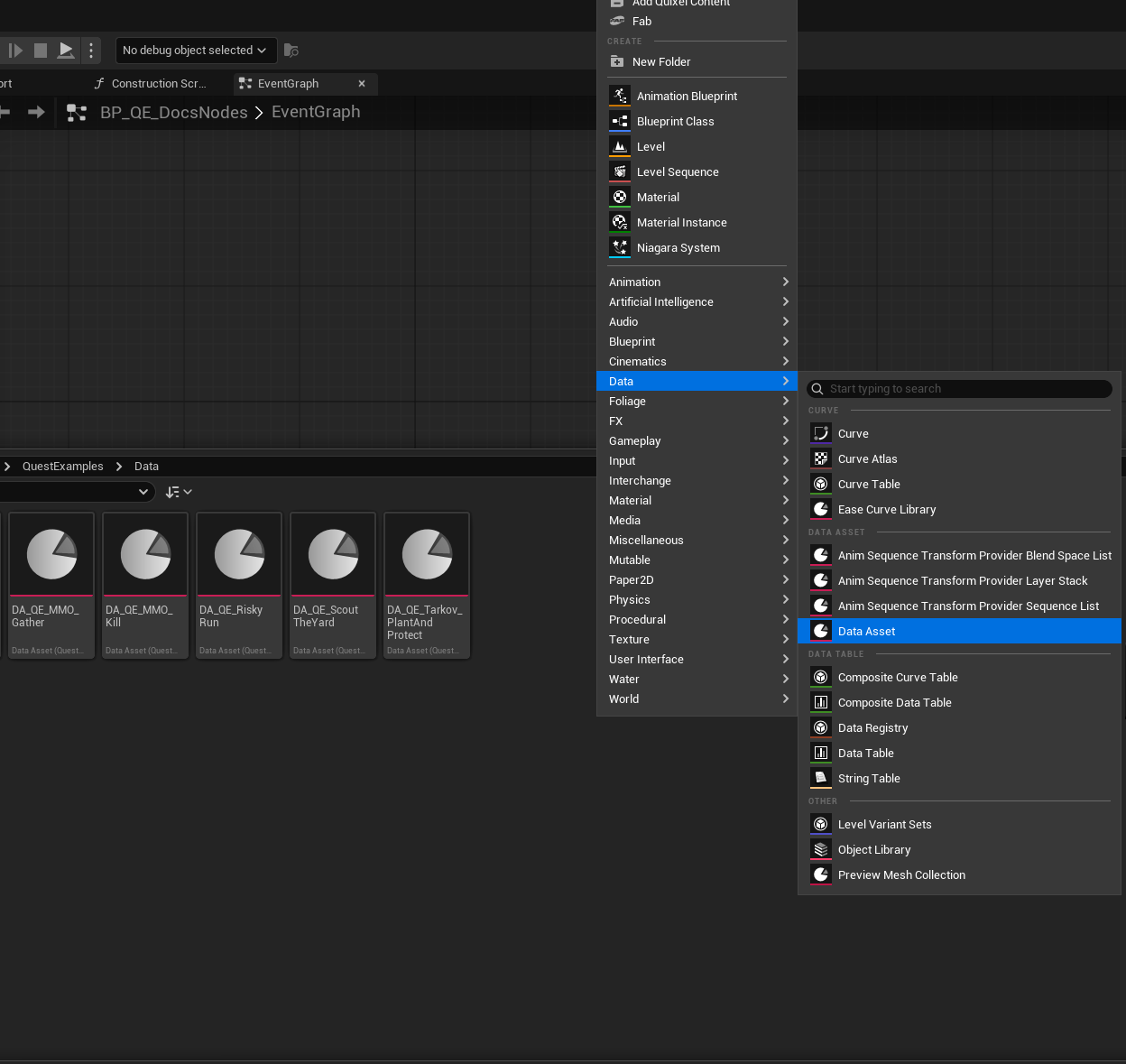
- In the Content Browser, right-click → Data → Data Asset.
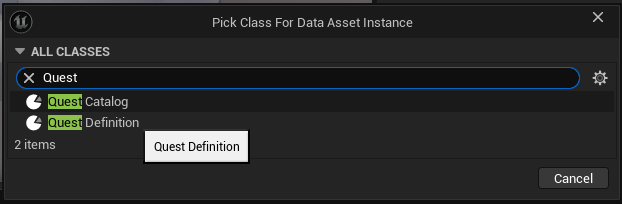
- Pick Quest Definition (
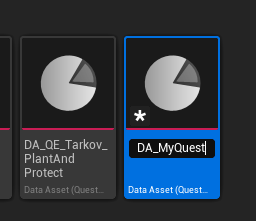
UQuestDefinition). SearchQuestto filter the class list. Quest Catalog is the other class in that picker. Use that class in a later step. - Name the asset (for example
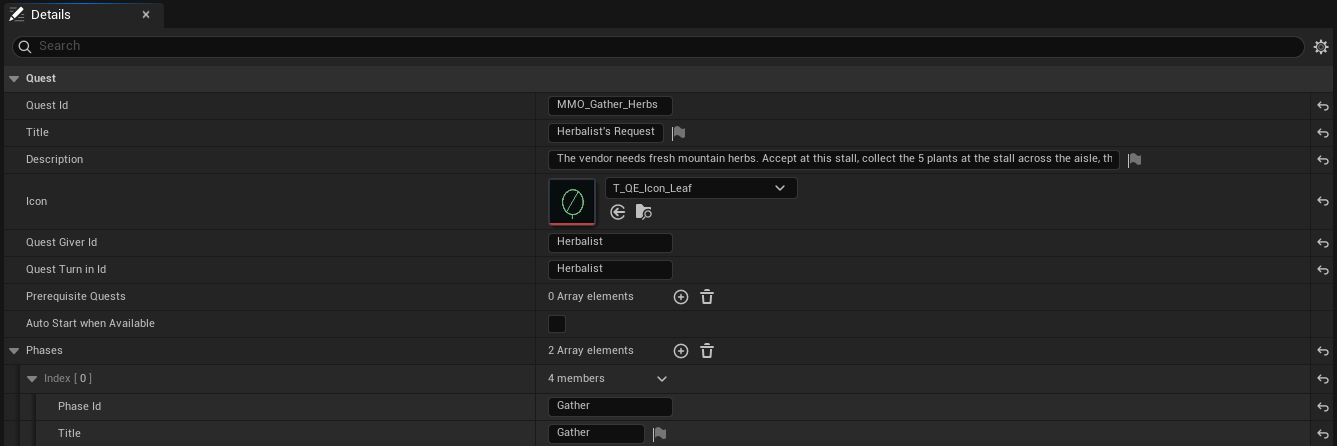
DA_MyQuest). - Set Quest Id, Title, and Description.
- Set an optional Icon (soft
Texture2D). Your HUD loads it. The plugin does not draw it. - Set optional Quest Giver Id and Quest Turn In Id. They can differ.
Phases and objectives
Add Phases in order. Only the current phase accepts CompleteObjective and FailObjective.
Each objective has Objective Id, Title, Required Count, optional Icon, and a description.
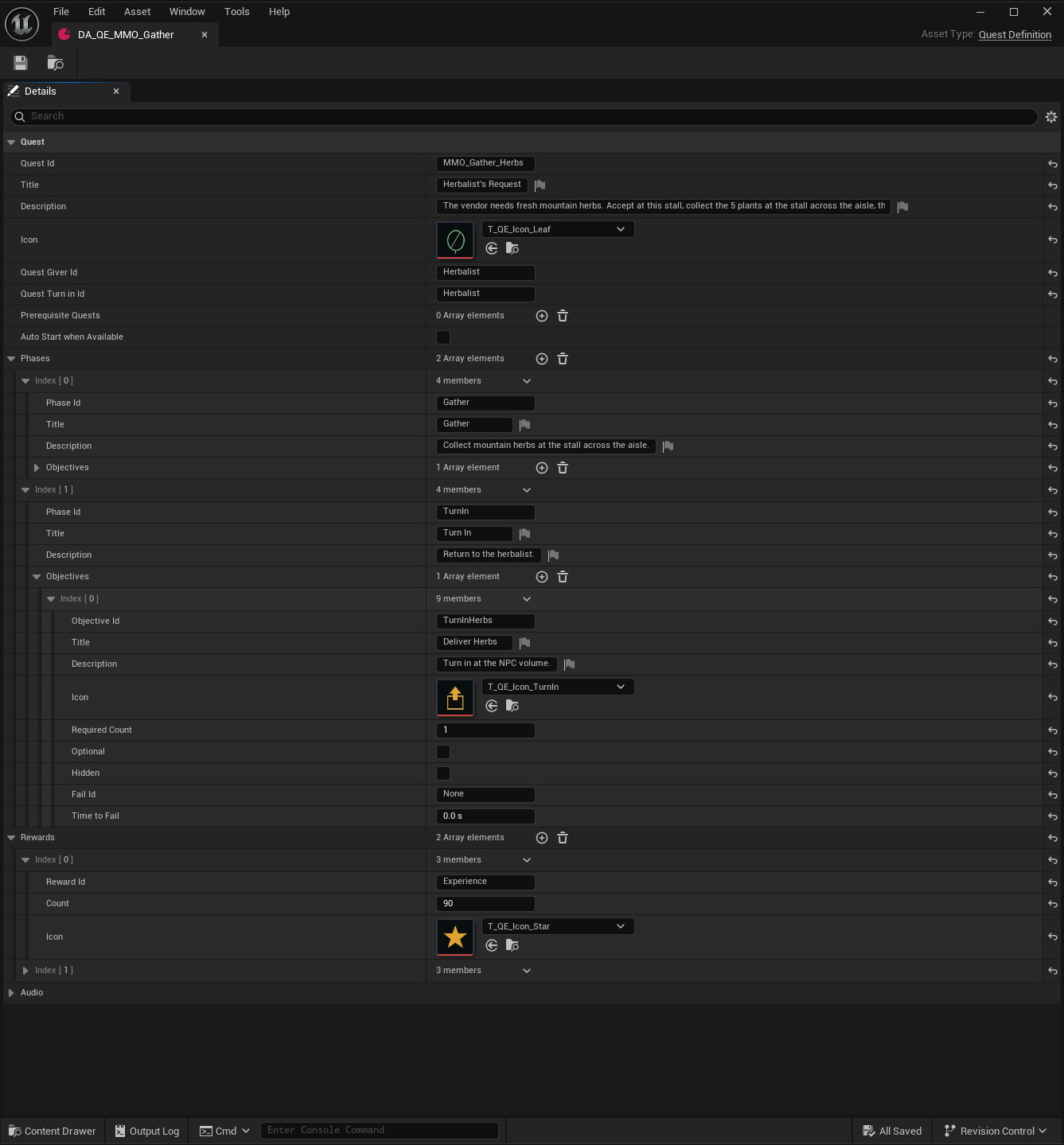
Objective flags
| Flag | Effect |
|---|---|
| Optional | The phase can complete without this objective. If the phase has required objectives, those required objectives gate completion. If every objective is optional, all of them must complete. |
| Hidden | Do not show this objective in the tracker until CurrentCount >= RequiredCount. Progress still counts. Use ShouldDisplayObjective. |
| Fail Id | A matching FailObjective call fails the quest. Leave None to disable. |
| Time To Fail | Seconds after this phase becomes current. 0 disables the timer. When the timer expires, the quest fails. If you complete the objective, the timer stops. |
Optional, Hidden, Fail Id, and Time To Fail are independent.
Objective ids and fail ids are not globally unique. A call matches every Active quest in its current phase.
Prerequisites, auto-start, rewards, sounds
- If this quest must wait on other quests, add Prerequisite Quests.
- If the quest must start when it becomes Available, tick Auto Start When Available.
- Add Rewards: Reward Id, Count, and optional Icon. The plugin does not grant items.
- Set optional Quest Complete, Quest Failed, and Objective Complete sound cues. The plugin does not play them.
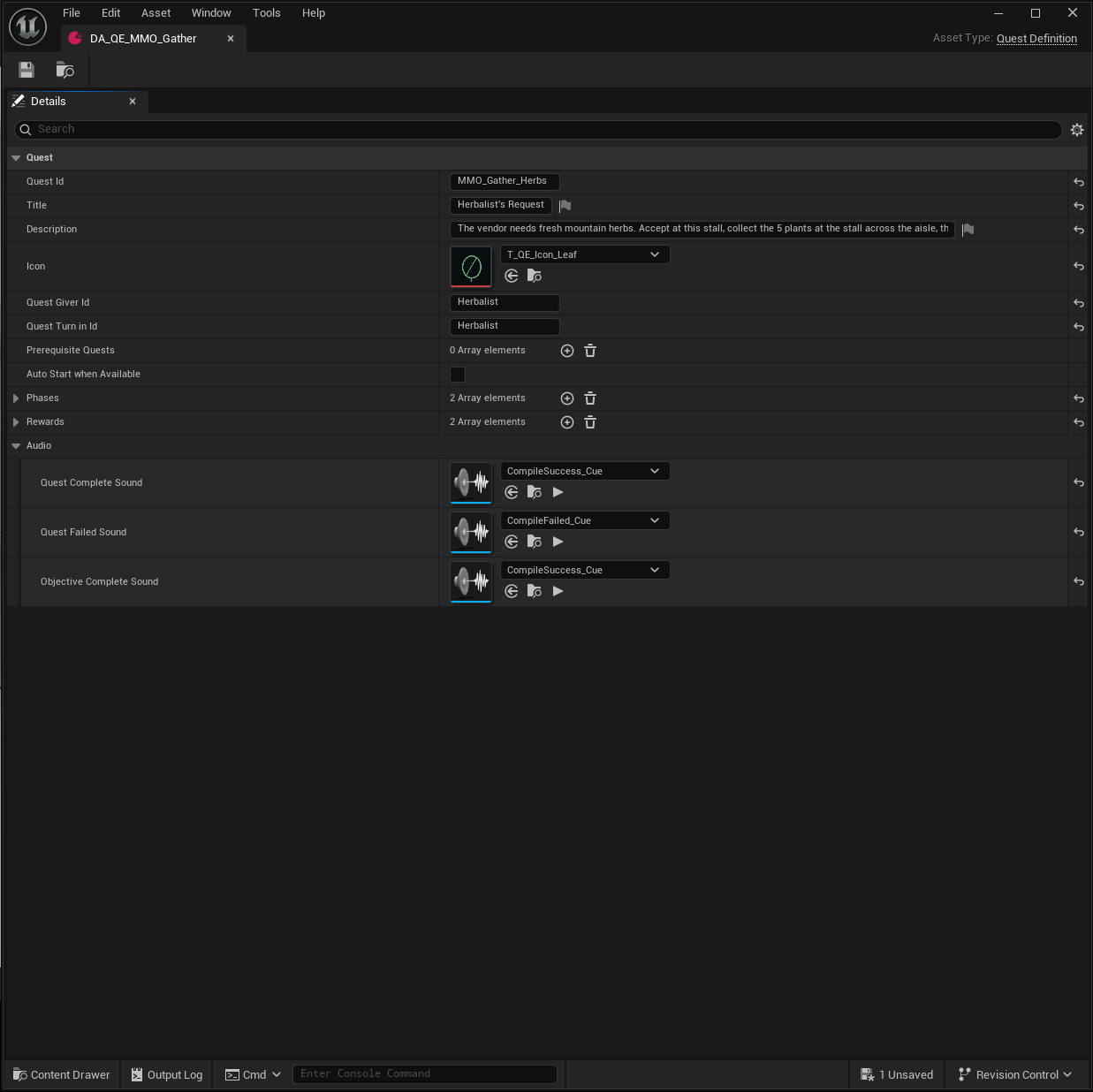
A prerequisite is met when that quest is Completed. It is also met when Times Completed is greater than 0.
Auto-start runs only the first time a quest becomes Available. It does not run after fail or abandon.
Completed quests stay Completed. You cannot start them again.
Fail and abandon erase progress. The quest becomes Available.
Catalog and Project Settings
- Same create path as a definition: right-click → Data → Data Asset. Then pick Quest Catalog (
UQuestCatalog). - Add every Quest Definition to the Quests array.
- Open Edit → Project Settings → Game → Quests And Objectives.
- Set Default Catalog to that catalog asset.
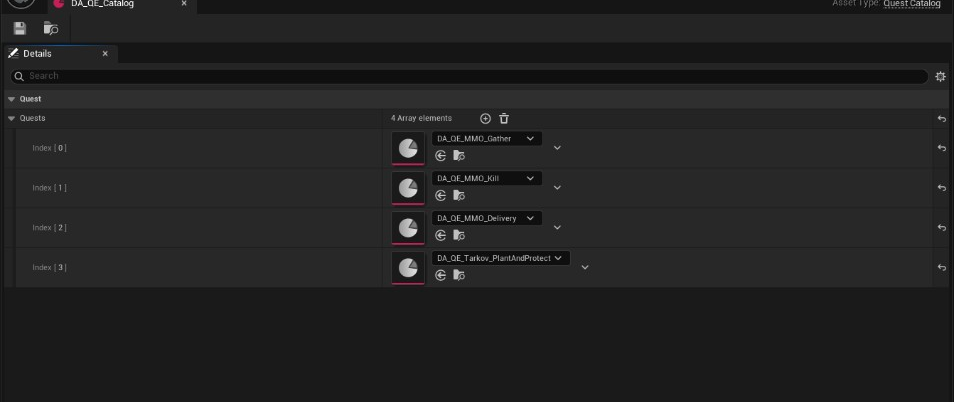
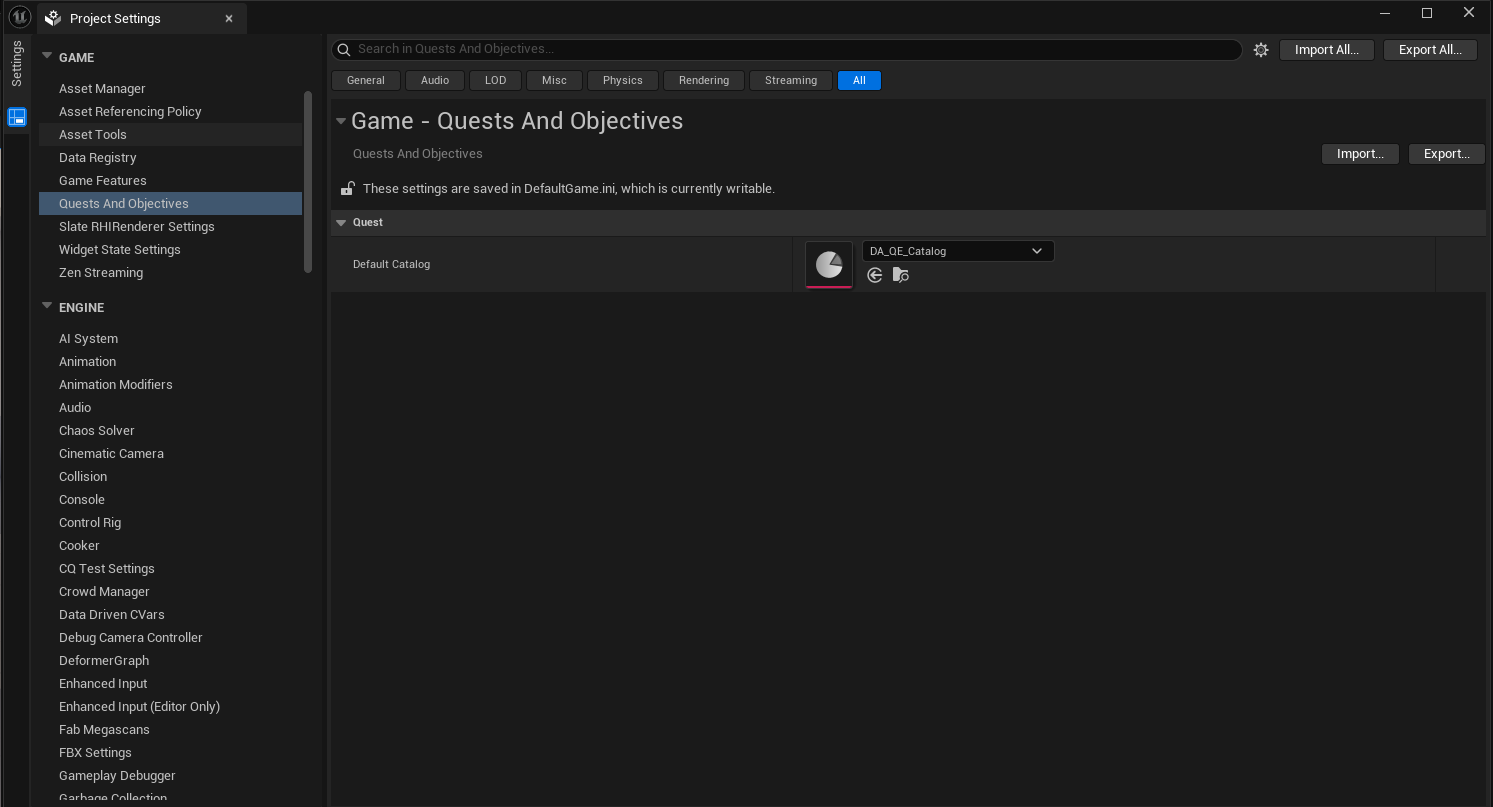
At runtime, UQuestSubsystem loads that catalog. You can also call RegisterQuest for a definition you spawn later.
Giver and turn-in lookup
Use the same FName on the NPC as Quest Giver Id or Quest Turn In Id. You can also use a data asset id.
| Need | Subsystem API |
|---|---|
| Definitions this NPC offers | GetQuestsByGiverId |
| Definitions this NPC accepts | GetQuestsByTurnInId |
| Either role | GetQuestsByVendorId |
| One definition by id | GetQuestById |
An id of None never matches. The plugin does not spawn NPCs or play dialogue.